
Why Multi-Step Workflow Automation in Zoho CRM Matters
Multi-step workflow automation in Zoho CRM isn’t just a fancy buzzword. It’s the backbone of any sales process that wants to stop leads from slipping through the cracks. If you’re still manually chasing leads or firing off one-off emails, you’re wasting time and money.
Zoho CRM’s latest workflow automation features give you the tools to build complex, multi-stage processes that actually reflect how your sales cycles work. The result? Faster follow-ups, better lead nurturing, and no more guessing when to reach out.
Understanding Zoho CRM’s Updated Workflow Automation Features
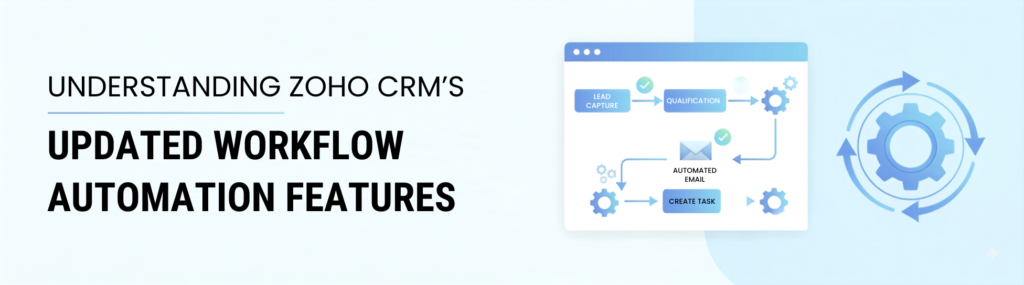
Zoho CRM recently revamped its workflow automation interface, making it easier to create and manage multi-step sequences. The drag-and-drop builder is more intuitive, letting you connect conditions, actions, and time delays without wrestling with clunky menus.
Plus, you can now trigger workflows based on a wider range of criteria including lead scores, and even custom modules. This means workflows are no longer one-size-fits-all; they can be tailored to your exact sales process.
Honestly, if you’re trying to set up multi-step workflow automation in Zoho CRM without understanding these updates, you’ll probably end up frustrated and with half-baked automations that don’t deliver.
Key Features to Know
- Conditional branching allows different paths based on lead behavior or data changes.
- Time-based triggers can delay actions for days or weeks, perfect for drip campaigns.
- Integrated email sequences that track open and click rates.
- Multi-module workflows that connect leads, contacts, and deals seamlessly.
How to Create Multi-Step Workflow Automation in Zoho CRM
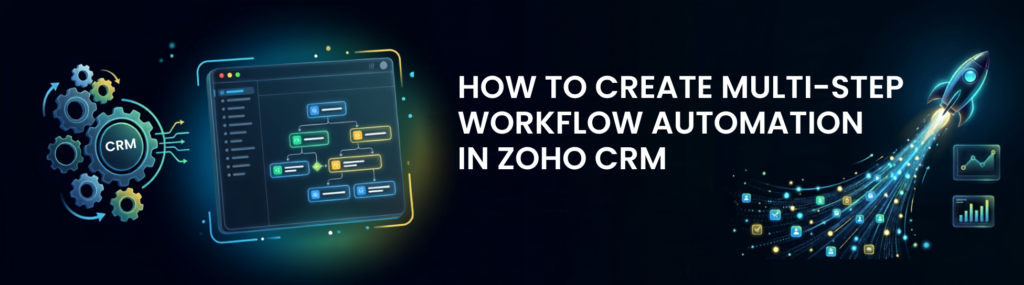
Here’s the part where most folks get tangled up. Setting up multi-step workflows isn’t just about clicking a button and hoping for the best. It requires clear planning, understanding your sales stages, and configuring the right triggers and actions.
Start by mapping your sales cycle. What happens after a lead comes in? How many follow-ups do you usually need? When do you qualify the lead as a deal? Once you have that clear, you can translate it into workflow steps.
Step-by-Step Setup
- Create a New Workflow: Go to Zoho CRM’s automation section and select ‘Create Workflow’. Choose the module (usually Leads or Contacts) you want to automate.
- Define the Trigger: Decide when the workflow starts. It could be when a lead is created, updated, or when a custom field changes.
- Set Conditions: Add criteria to segment your leads. For example, only trigger if the lead source is ‘Webinar’ or if lead score is above a certain threshold.
- Add Actions: This is where you build your multi-step sequence. Start with sending a welcome email, then add a time delay (like 2 days), followed by a task creation for a sales rep to call the lead.
- Branch Logic: Use conditional paths to handle different lead responses. If the lead opens the email, trigger a follow-up email after 3 days; if not, send a reminder sooner.
- Test and Activate: Run tests with dummy data to make sure your workflow behaves as expected before turning it live.
If you skip the testing phase, you’re basically hoping your workflow doesn’t break silently on a Saturday morning. And trust me, that happens way too often.
Designing and Integrating Email Sequences to Nurture Leads
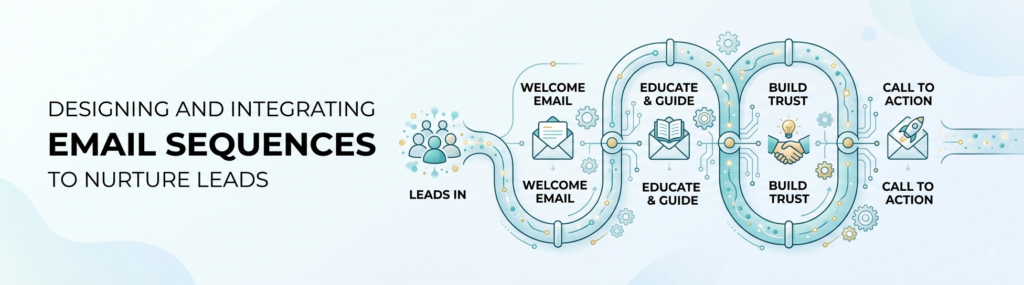
Multi-step workflow automation in Zoho CRM isn’t just about tasks and triggers. The real magic happens when you integrate email sequences that nurture leads based on their engagement.
Forget generic email blasts. Your sequences should be smart tracking opens, clicks, and even replies so you can adjust your approach automatically.
Building Effective Email Sequences
- Start with a Strong Welcome Email: This sets the tone. Personalize it with the lead’s name and reference how they found you.
- Use Timed Follow-Ups: Space out emails with delays that reflect your sales cycle pace. Don’t bombard leads the day after they download your ebook.
- Incorporate Behavioral Triggers: If a lead clicks a link about product pricing, trigger a follow-up email with a case study or a special offer.
- Keep It Conversational: Emails that sound like canned sales pitches get ignored. Write like you’re chatting with a colleague over coffee.
- Track and Adjust: Use Zoho CRM’s email analytics to see what’s working. If open rates tank after the third email, rethink your messaging or timing.
And yes, you can automate all this inside Zoho CRM without needing a separate marketing tool. It’s built-in, but only if you actually use it. Most businesses underutilize these features and then complain about slow lead response times.
Q&A: Common Questions About Multi-Step Workflow Automation in Zoho CRM
Can I automate workflows across multiple modules in Zoho CRM?
Absolutely. Zoho CRM lets you create workflows that interact with leads, contacts, and deals, so your automation mirrors your entire sales funnel. For example, you can trigger a workflow that moves a lead to the deal stage and assigns tasks to your sales team automatically.
How do I handle leads who don’t respond to automated emails?
If you’ve never had a workflow break silently on a Saturday, you’re either very new to this or very lucky. For unresponsive leads, set conditional branches that either trigger a re-engagement email after a certain period or flag the lead for manual follow-up. Automation isn’t a set-it-and-forget-it tool.
Quick Takeaways on Multi-Step Workflow Automation in Zoho CRM
- Zoho CRM’s updated workflow automation features let you build complex, conditional sequences that fit your real sales process.
- Mapping your sales cycle before building workflows prevents confusion and messy automations.
- Email sequences integrated into workflows should be personalized, timed, and tracked for best results.
- Testing workflows with real scenarios is non-negotiable to avoid silent failures.
- Use multi-module workflows to automate lead progression from first contact to deal closure.
Mastering multi-step workflow automation in Zoho CRM isn’t rocket science. It just takes a bit of patience, clear planning, and using the tools Zoho provides without overcomplicating things. If you keep chasing leads manually while ignoring these features, you’re choosing to waste time.